Updated on: February 1, 2026
Fact-checked by Sam Boyd
-
🥇 RoboForm
: Easy-to-use password manager for any age group, with bank-level security, and best-in-class form-filling. It lets you keep unlimited passwords on unlimited devices and is compatible with the major OSs. It offers a great way to secure and organize your passwords at a very affordable price. Plus, all paid plans are backed by a 30-day money-back guarantee.
Managing passwords can undoubtedly be a headache, especially if you’re elderly and struggle with remembering complex passwords or managing multiple accounts. It might even be tempting to write passwords down in a notebook, but you run the risk of them being lost or stolen.
That’s why I tested the most popular password managers on the market. I focused on finding apps that are safe, easy to use, and senior-friendly. Each app on this list has straightforward navigation, requires minimal effort, and provides good customer support, allowing seniors to access their online accounts without effort.
The password managers I recommend combine strong security with simple, intuitive interfaces. They include handy features like alerts for weak passwords, encrypted storage that only you can access, and monitoring that warns you if your details appear in a data breach.
Quick Summary of the Best Password Managers for Seniors


🥇1. RoboForm — Best Budget-Friendly Password Manager for Seniors With an Excellent Form Filler
Approved by our experts


RoboForm is highly secure, easy to use, and has the best form-filling capabilities on the market.
- Excellent form-filling accuracy
- Unlimited password storage (free)
- Bookmark storage across devices
- No comprehensive dark web scan
RoboForm’s interface is easy to understand and navigate, so my parents had no trouble understanding and using its form-filler. Unlike other password managers they tried, it easily and accurately filled out all of their information onto various complex online forms, including those for medical, banking, and shopping.
What makes the form-filler stand out is its ability to handle multiple fields, complex entries, and various form formats seamlessly. During my tests, we were also able to easily set up 2FA, share logins with other RoboForm users, audit the entire password vault, and grant emergency access to trusted contacts.
RoboForm also provides the following extras:
- Password vault auditing.
- Bookmark storage.
- Password and note sharing.
- Emergency access.
- Master password restore.
One of RoboForm’s coolest features is the bookmarks storage, which saves bookmarks to any device with RoboForm installed on it. My dad was very impressed with this feature, as he was able to access important links on both his phone and computer easily.
I like that on Android, RoboForm offers an Accessibility Autofill mode that helps fill in usernames and passwords more smoothly on apps where the normal auto-fill option may not work. In my experience, it worked most of the time on those apps — and while it wasn’t flawless, it generally made logging in smoother and more reliable.
RoboForm also provides reliable customer support. You can access live chat Monday–Friday from 6am to 6pm EST, and phone support is available by request for paid users. This means that help is easy to reach whenever you or your elderly loved ones need assistance with setup, troubleshooting, or account recovery.
That said, RoboForm offers pretty basic data breach monitoring that uses the free “Have I Been Pwned?” database for breach alerts rather than comprehensive dark web monitoring. However, this is not a deal breaker for most people, but if you prefer real-time alerts about new breaches associated with your account, you may like Dashlane’s dark web monitoring feature more.
RoboForm Free includes unlimited password storage, form-filling, password auditing, bookmarks storage, password sharing, 2FA, and cloud backup for a single device. The paid plans are well-priced. RoboForm Premium costs £0.79 / month and adds emergency access, cloud backup on unlimited devices, syncing across all devices, and priority support. RoboForm Family (£1.25 / month) includes all the features of the Premium plan and adds licenses for up to 5 users. RoboForm comes with a 30-day money-back guarantee.
Bottom Line:
RoboForm is a budget-friendly password manager with top form-filling capabilities. Its interface isn’t the most polished, but it’s still easy enough to use and includes useful extras like bookmark storage. RoboForm purchases have a risk-free 30-day money-back guarantee.
🥈 2. 1Password — Secure Password Managers for Seniors With Intuitive Features
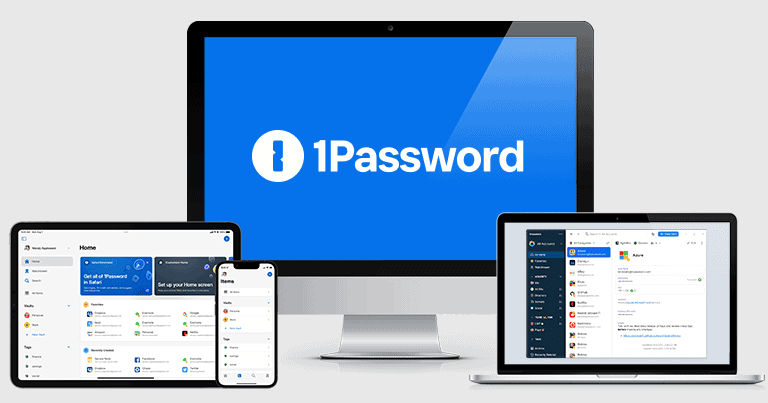
1Password offers an incredibly user-friendly interface, whether you’re using it on Windows, Mac, or a smartphone. In fact, my non-tech-savvy parents were able to set up their accounts and navigate the features with ease (though I did assist them with the Emergency Kit during the initial mobile setup).
- User-friendly for seniors
- Excellent family plan
- Supports virtual payment cards
- Helpful tutorials included
- Lacks a free version
1Password’s website offers excellent step-by-step guides that cover every feature. It also has a YouTube channel full of helpful tutorial videos. When I introduced my parents to 1Password, I showed them a tutorial video on using the auto-fill feature. After that, every time they encountered a login field, they immediately recognized the 1Password logo pop-up, ready to either auto-fill their saved passwords or generate a brand new secure password.
1Password’s built-in templates are really useful for securely storing and managing personal information. These templates made it really easy for my mom to add info like her health insurance details and prescriptions, ensuring that all her important info was organized and accessible. NordPass also offers templates, although not nearly as many as 1Password.
1Password also comes with useful additional features, like:
- Watchtower (vault auditing & breach monitoring).
- Travel Mode (hidden vaults).
- Family vault sharing (Families plan).
- Passkey authentication.
- Account recovery (Families plan).
- Email masking.
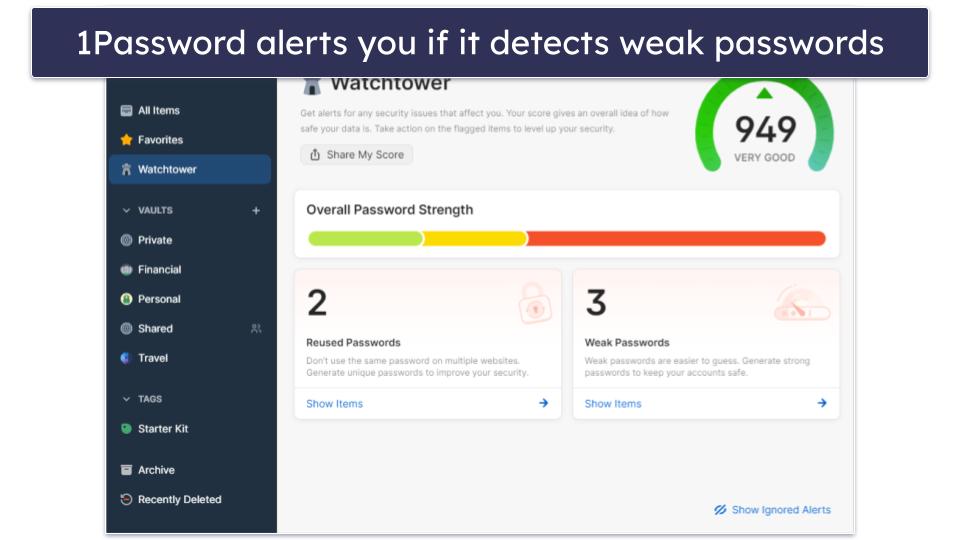
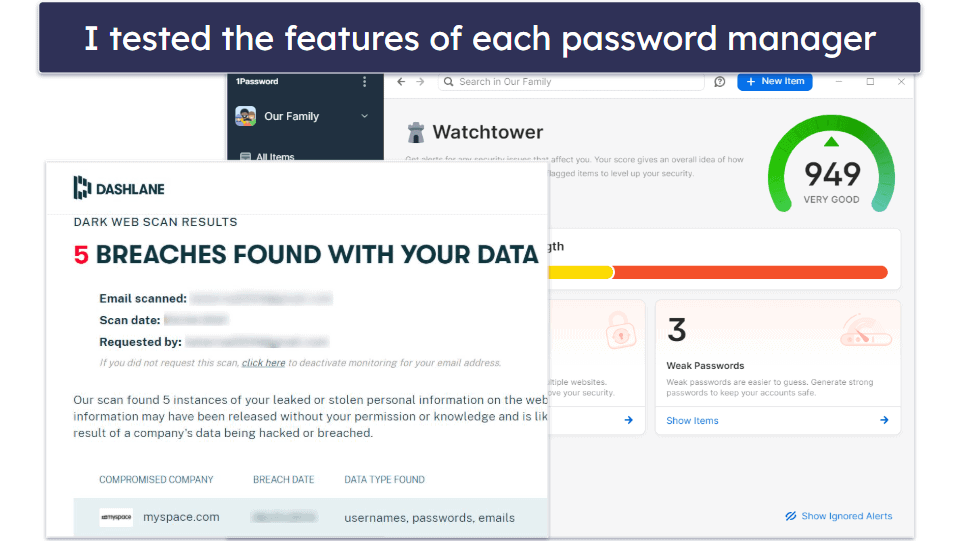
I really like that 1Password has a desktop app. My mom found it easy to access all features through it, rather than having to switch between the browser extension and web app. It’s also very easy to check for weak, compromised, or repeated passwords using the Watchtower feature.
1Password makes account recovery straightforward, which is helpful if your parent forgets their master password. With a Families plan, you can step in as a trusted contact to help them regain access if they’re ever locked out. For Individual plans, 1Password provides an Emergency Kit — a printable PDF with your account details and setup key — that can be stored safely at home.
I really like 1Password’s Privacy Cards, too. It allows you to create virtual payment cards that can be used instead of your real credit card for safer online shopping. My dad liked that he could shop online and still keep his credit card details private.
I was also impressed by 1Password’s Large-Type Display feature, which lets you view your saved passwords in oversized text. It even uses different colors for letters, numbers, and symbols, making them much easier to read and type correctly. My mom, who usually has trouble with small text or confusing character combinations, found this really helpful. Additionally, 1Password works well with screen readers, which is useful for seniors with vision difficulties.
That said, I was a bit disappointed that 1Password doesn’t offer a free version. This means you’ll need to commit to a paid plan after the 14-day trial. Unlike some competitors, it also doesn’t include a money-back guarantee. However, the trial period is usually enough time to explore all of 1Password’s features and decide if it’s the right choice for you.
1Password Individual includes all the features for only £2.18 / month. 1Password Families, which is my favorite family plan on the market, covers 5 users and provides permission management, shared vaults, and account recovery tools for £3.64 / month. 1Password Families also gives you the option to add additional members for a small fee — something no other brand offers. While 1Password doesn’t offer a money-back guarantee, it offers a 14-day free trial to help you decide whether it’s what you’re looking for.
Bottom Line:
1Password is a very secure and feature-rich password manager and comes with an intuitive interface that makes it easy to use all of its extensive features, like Travel Mode, Watchtower, and email masking. With plans suitable for individuals and families, and the option to explore its full range with a 14-day free trial, it’s an excellent choice for seniors.
Read the full 1Password review
🥉 3. NordPass — Straightforward Interface + Future-Proof Encryption


NordPass is a top choice for seniors looking for a password manager that’s both easy to use and very secure. It uses military-grade encryption to keep your data safe, similar to the kind banks use.
- Extremely user-friendly
- Email masking for privacy
- Secure file storage (3 GB)
- iOS app lacks some features
During my tests, NordPass did a great job of quickly recognizing and auto-filling saved passwords as well as securely storing sensitive information. The password generator is also very easy to use and lets you create strong passwords. My mom really loved the passphrase option, which lets you create long but easy-to-remember phrases instead of complex random strings.
She also really liked how easy the desktop app was to navigate. Other password managers like Dashlane don’t come with a desktop app and rely on browser extensions and the web app (which could get confusing for elderly people). Additionally, she could easily add me as an emergency contact. If she ever got locked out, I could request access to her vault, and she’d decide how long I’d need to wait before getting in — for example, 24 hours or a few days. If she changed her mind, she could cancel my request anytime.
NordPass also comes with many other security features like:
- Password health checkup tool.
- Data breach monitoring.
- Email masking.
- Secure file storage and attachments (3 GB).
- Passkey support.
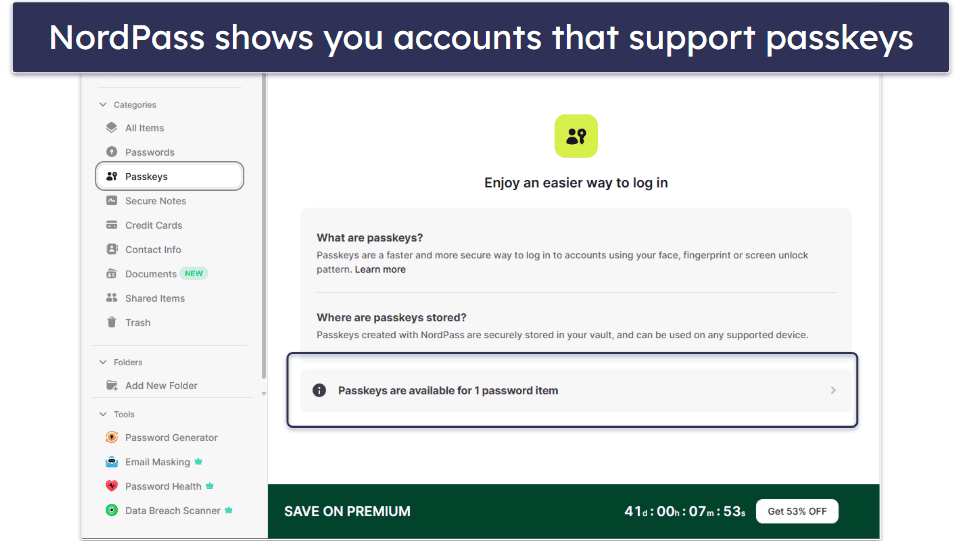
I was really impressed with NordPass’s breach monitoring — it checks if your data has been compromised and provides real-time notifications and detailed breach reports. It’s also the only password manager that will monitor your credit cards as well. And, the password health checker alerts you to weak and reused passwords. However, I wish it had an overall password health score like competitors like 1Password do.
NordPass also offers email masking, which makes it easy for my mom to keep her real email address private when signing up for online services. It creates a unique masked email that forwards messages to her actual inbox, so she still gets important emails without exposing her personal address. If one of these masked emails ever gets spammed, she can simply disable it without affecting her main email. On top of that, there’s no need for extra subscriptions or setup — everything is already included in NordPass.
Another thing I like is that NordPass provides 24/7 live chat support. This makes it easy for elderly users to get quick help whenever something isn’t working or if they run into any issues. Having real people available around the clock is reassuring, especially compared to password managers that only offer slower email support.
I noticed that NordPass’s iOS app doesn’t include all the same features as the desktop and Android versions. While it still covers the essentials, some advanced tools like emergency access are missing, which could be inconvenient for seniors who mainly use an iPhone or iPad.
NordPass Free offers unlimited password storage on multiple devices, but it only allows you to log into 1 device at a time. Upgrading to NordPass Premium (£0.94 / month) gives you unlimited simultaneous device connections, password sharing, password health checker, data breach monitoring, emergency access, and a lot more. NordPass Family has all the features of Premium but expands its coverage for up to 6 users and costs £2.03 / month. All of NordPass’s plans come with a 30-day money-back guarantee, and there’s a 30-day free trial on the Premium plan.
Bottom Line:
NordPass combines easy navigation with advanced protection tools like breach alerts and email masking, making it one of the safest and simplest password managers for seniors in 2026. You can try it out with a free 30-day trial and rest easy knowing there’s a 30-day money-back guarantee.
4. Dashlane — Best Extra Features (Including Secure VPN)

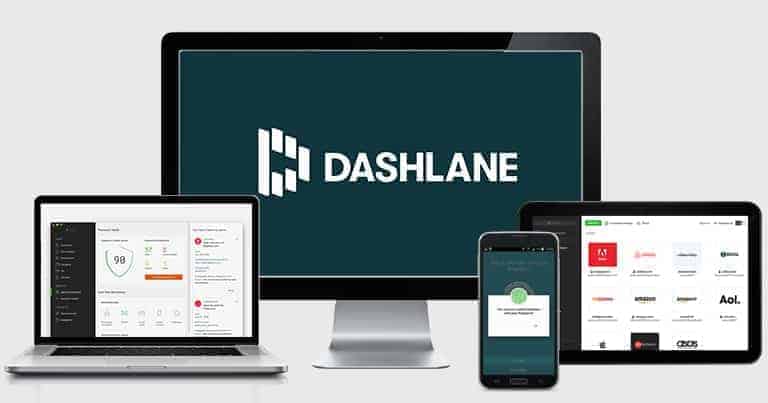
Dashlane is another great pick for the elderly with an intuitive interface. I found it super easy to generate and store new passwords, auto-fill logins, and share passwords with other users.
- Built-in secure VPN
- Anti-phishing feature
- Live dark web monitoring
- No desktop app
- No emergency access
However, Dashlane lacks a dedicated desktop app, relying instead on a web-based interface and browser extensions. Transitioning between browser extensions and web interfaces might be confusing for some seniors compared to the straightforward nature of a desktop app. Additionally, Dashlane doesn’t offer emergency access, which is a significant drawback for elderly users who want to ensure trusted contacts can access their accounts in case of an emergency.
Dashlane also provides valuable extra features, such as:
- VPN.
- Dark web monitoring.
- Password strength checker.
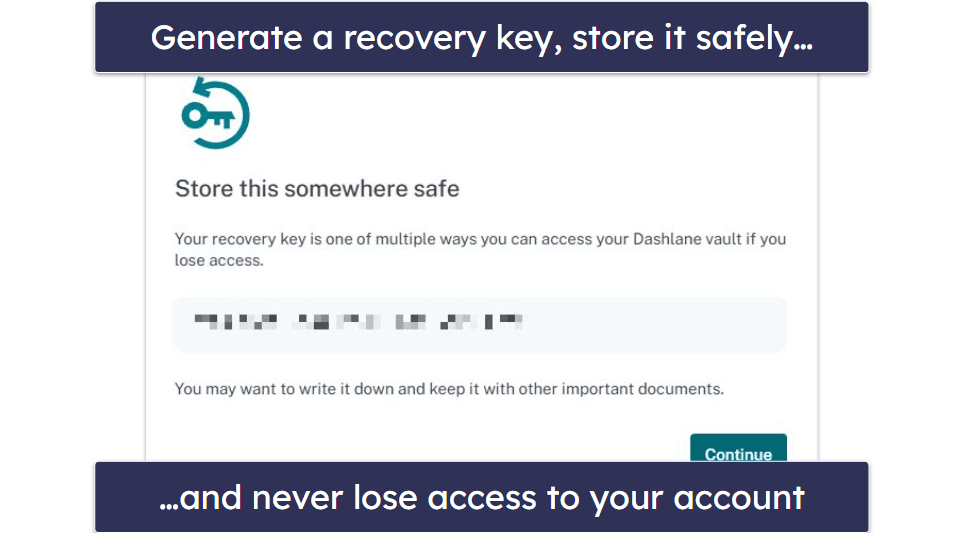
- Multiple account recovery options (recovery key, biometric logins, and admin-assisted recovery for Family plans).
- Passkey authentication.
Dashlane is also the only password manager to offer an integrated VPN, powered by Hotspot Shield, which comes with 256-bit AES encryption, a kill switch, and a strict no-logging policy. While not as feature-rich as the best standalone VPNs, it offers fast connection speeds and provides an additional layer of privacy. My mom appreciated the peace of mind knowing her online activities were private and secure, especially when handling sensitive information or connecting to public Wi-Fi.
I found Dashlane’s anti-phishing feature to be very useful, too. The feature warns you if a link is trying to trick you into giving away your personal details, such as when a fake site mimics a trusted one. For example, when my dad was shopping online, Dashlane immediately flagged a suspicious site designed to look like Amazon, preventing him from entering his login details on a fraudulent page.
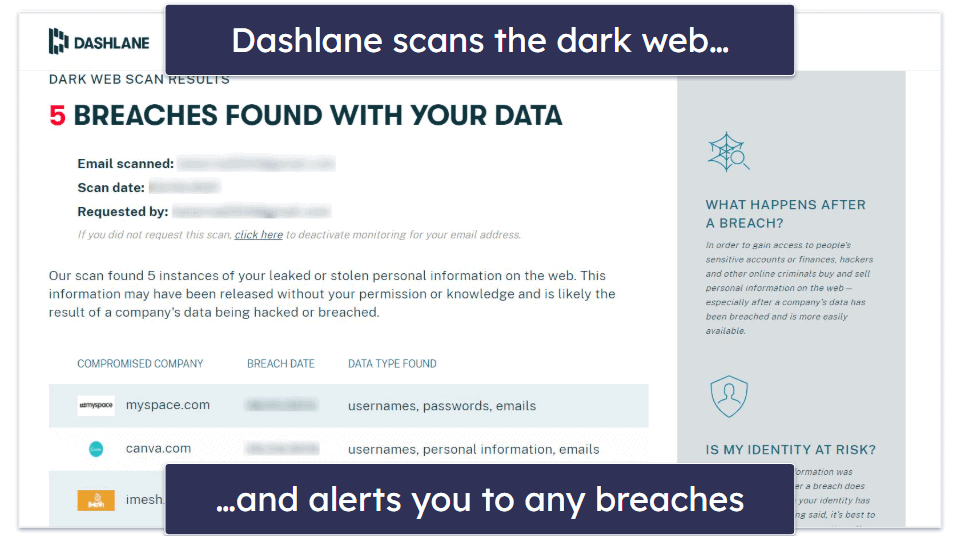
I particularly like Dashlane’s dark web monitoring, too — it has a team of live agents that scans hacking forums and the dark web, alerting you if any data has been breached. It showed that 5 of my mom’s accounts were compromised, and she could quickly go in and change those passwords.
Unlike most password managers, Dashlane has live chat support, which is especially helpful for seniors who may not feel comfortable troubleshooting on their own. Instead of waiting for an email response, you can quickly connect with a real support agent during business hours. The support is available in multiple languages, so it’s easier for seniors to get clear answers in a language they understand.
Dashlane Premium (£3.64 / month) provides unlimited passwords across unlimited devices and has all of Dashlane’s security features, including phishing protection and a VPN. Dashlane Friends & Family has all the features of Premium and adds a family management dashboard and coverage for 10 separate vaults for £5.46 / month. All of Dashlane’s plans come with a 30-day money-back guarantee.
Bottom Line:
Dashlane is perfect for seniors who want extra online protection, thanks to features like dark web monitoring, scam protection, and a built-in VPN. It provides strong value with unlimited passwords and device coverage, as well as passkey support. All Dashlane plans come with a risk-free 30-day money-back guarantee and a 14-day free trial.
5. Proton Pass — Secure, Easy-to-Use Password Manager for Seniors
Proton Pass stands out as a strong choice for older users who want top-tier security without unnecessary complexity. It’s built with end-to-end encryption and a zero-knowledge architecture, meaning Proton can’t see your saved data. The code is open-source, giving transparency and allowing security audits, which can instill extra confidence.
- Simple, intuitive interface
- Excellent email aliasing tools
- Advanced threat detection (Sentinel)
- Great free plan value
- Limited customer support options
- Auto-fill is slow on some sites
Key Features include:
- Autofill for logins and payment details.
- Hide-my-email aliases for phishing protection.
- Adjustable font size for better readability.
- Emergency access.
When I tested Proton Pass with senior users in mind, I liked that it has adjustable font sizes and clear menus that make it easy to navigate. And the inclusion of emergency access means a trusted contact can recover important credentials in the event of an emergency — a vital safety net for older users.
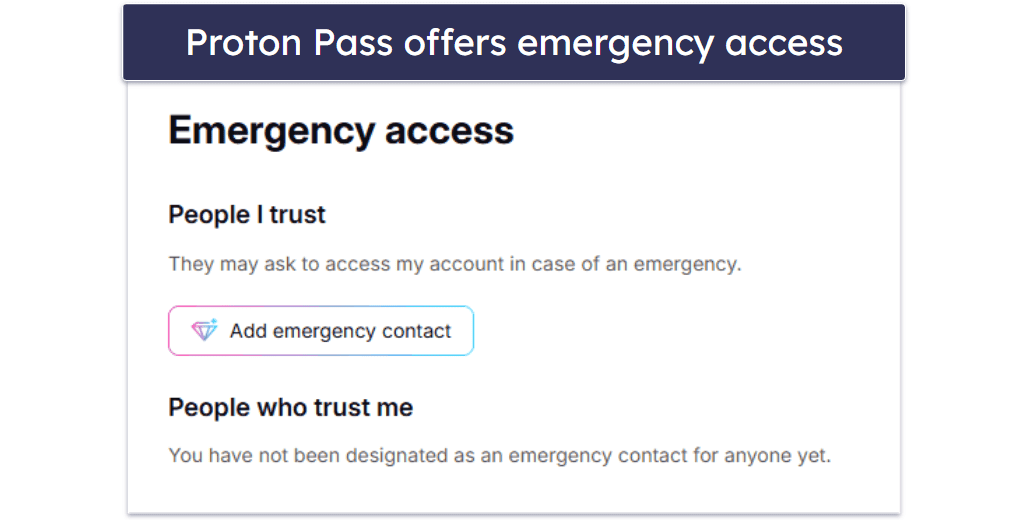
I found the interface to be clean, uncluttered, and consistent across devices — so there’s little relearning when moving between a phone, tablet, or computer. Auto-fill and password generation worked reliably for my test accounts, including banking and email services, and syncing across devices was seamless.
What really appeals to seniors is Proton Pass’s hide-my-email aliasing: it lets users sign up for services without exposing their real email address. If one alias is spammed, it can be disabled instantly — no need to touch your main account. That kind of protection is especially useful for older adults who are more vulnerable to phishing.

Proton Pass also offers built-in 2FA, passkey support, dark web monitoring (Pass Monitor), and secure password sharing (so you can share credentials with trusted family or caregivers without revealing everything). On paid plans, Proton Sentinel adds AI-driven protection to block suspicious login attempts — for example, someone logging in from a new device or a distant location minutes after your usual login.
The Free plan is impressive. It offers unlimited passwords on all devices, 2 vaults, 1 GB encrypted storage, password health alerts, and up to 10 email aliases. Meanwhile, Proton Pass Plus (£2.18 / year) unlocks unlimited aliases, file attachments, and advanced sharing. The Family plan (£3.64 / year) brings these features to up to 6 users with 50 GB of encrypted storage. All plans include a 30-day money-back guarantee.
Bottom Line:
Proton Pass offers excellent security in a user-friendly design that’s perfect for seniors who want a straightforward way to stay protected online. With privacy-first engineering, email aliases, and smart threat detection, it’s one of the safest and easiest password managers for seniors in 2026.
Read the full Proton Pass review >
Bonus. Keeper — Highly Secure Password Manager With Unique Features

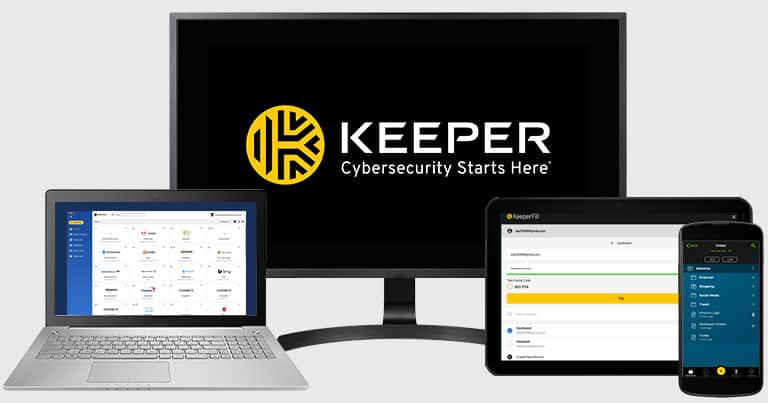
Keeper is one of the most secure password managers on the market. It has a clean, modern, and well-organized interface that is simple to use, along with reliable apps for all major devices.
- KeeperChat secure messaging
- Private encrypted media storage
- Multiple recovery options
- Free plan is very limited
- Dark Web Monitoring costs extra
It also comes with a wide range of features designed to enhance seniors’ online security, including:
- Password security auditing.
- Dark web monitoring (as paid add-on only).
- Encrypted file storage.
- Passkey support.
- KeeperChat (an encrypted messaging app).
Keeper’s desktop app is very user-friendly, making it easy to save and share passwords, and the emergency access feature lets trusted contacts step in during emergencies, giving everyone involved extra peace of mind.

I also like KeeperChat — a cool feature which allows for secure communication, with options to create self-destructing and retractable messages. It’s an easy way to keep communications secure across different device types.
I found Keeper’s dark web monitoring to be very good. However, Keeper only offers it as a paid add-on, unlike other password managers like 1Password and Dashlane, which is a bit annoying.
Unfortunately, Keeper doesn’t offer a money-back guarantee. Another small drawback for me is Keeper Concierge — the company’s paid add-on for priority support and one-on-one training. While I don’t mind paying extra for faster help, I personally don’t think training on how to use the product’s features should be locked behind a paywall. That said, Keeper is one of the few password managers that offers 24/7 customer support through email, live chat, and phone.
Keeper Free is pretty limited compared to free plans from competitors like Proton Pass and RoboForm — you can only use it on a single mobile device with a 10 record limit. While auto-fill is included, tools like password sharing and browser extension access are locked behind paywalls. Keeper Personal offers unlimited password storage across unlimited devices, MFA, password sharing, emergency access, an encrypted messaging app, and more for £2.13 / month. Keeper Family costs £4.56 / month and adds 5 licenses and 10 GB encrypted storage. You can also get extras, such as dark web monitoring and up to 100 GB of cloud storage for an additional cost. You can try Keeper risk-free using a 30-day free trial.
Bottom Line:
Keeper provides an easy-to-use password manager with powerful security features, password sharing and auditing, secure storage, user-friendly apps, and seamless integrations across all platforms. While the free plan is limited and can only be accessed on a single mobile device, its premium plans offer many extras, including password sharing. You can try Keeper risk-free using a 30-day free trial.
Quick Comparison Table
Testing Methodology: Comparison & Ranking Criteria
To find the best password managers for seniors, I relied on our comprehensive testing methodology, which evaluated each product against several key criteria. My goal was to find solutions that combine strong security with easy-to-use interfaces and features tailored to the needs of older users. Here’s an overview of the areas I focused on during my evaluation:
- I assessed ease of use across all platforms. A password manager for seniors should be easy to install and provide a user-friendly interface and apps for all major platforms. I tested each of my top picks to ensure that they are simple to use, but I was particularly impressed with NordPass in this area.
- I tested customer support responsiveness and resource availability. I assessed the availability and quality of customer support — crucial for seniors who may require more assistance. This included checking whether support was available through multiple channels, such as phone, email, and live chat.

- I tested the security and encryption standards. I examined the encryption methods used by each password manager, ensuring they offer bank-grade security, typically 256-bit AES, along with a zero-knowledge policy to protect users’ data from unauthorized access — including by the service’s own staff.
- I evaluated the core password management functionalities. I assessed how well each tool handled essential features like storing passwords securely, auto-filling login fields, capturing new credentials, and generating strong passwords. Those that performed these functions smoothly and reliably, with no glitches or errors, ranked higher, such as 1Password and Dashlane.

- I looked into the additional features offered. Given that seniors might be more vulnerable to cyber threats, I looked for features that add an extra layer of security, such as a VPN, dark web monitoring, two-factor authentication (2FA), and password auditing.
- I analyzed the pricing and value offered. I looked at the cost of each password manager and the features included in their free and paid plans. Those offering the best balance of features and fair upgrade pricing, like RoboForm and NordPass, were rated favorably.
How To Use a Password Manager
Using a password manager is very simple. Instead of trying to recall dozens of logins, you only need to remember one master password. Once you set it up, the password manager takes care of the rest — from securely storing your passwords to automatically filling them in when you need them. Here’s a step-by-step guide to get started:
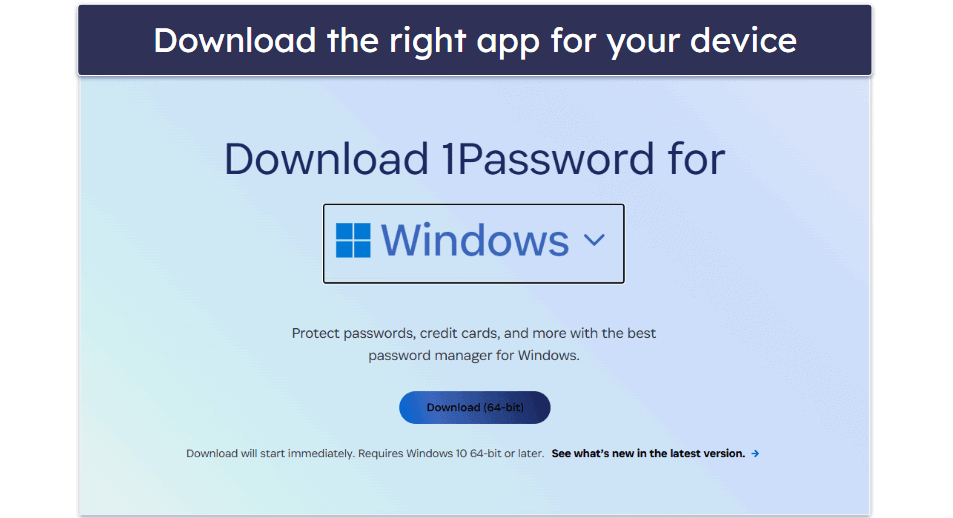
- Download and install the app. Choose a password manager from this list, then install it on your computer, phone, or both. Most password managers let you use them across multiple devices, so you can log in no matter where you are.
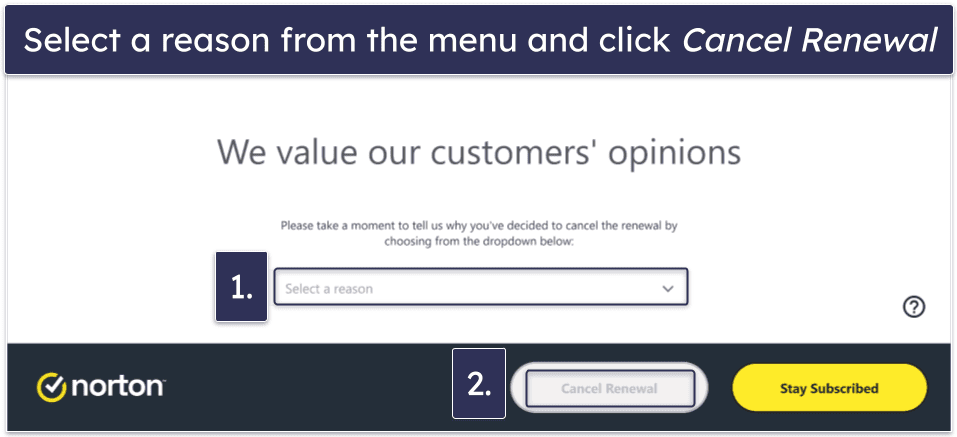
- Create your master password. When you first open the app, you’ll be asked to create a master password. This is the key that unlocks your password vault, so it needs to be strong but also memorable. Some password managers will also ask you to generate and save a unique security key that you can use to recover your account.
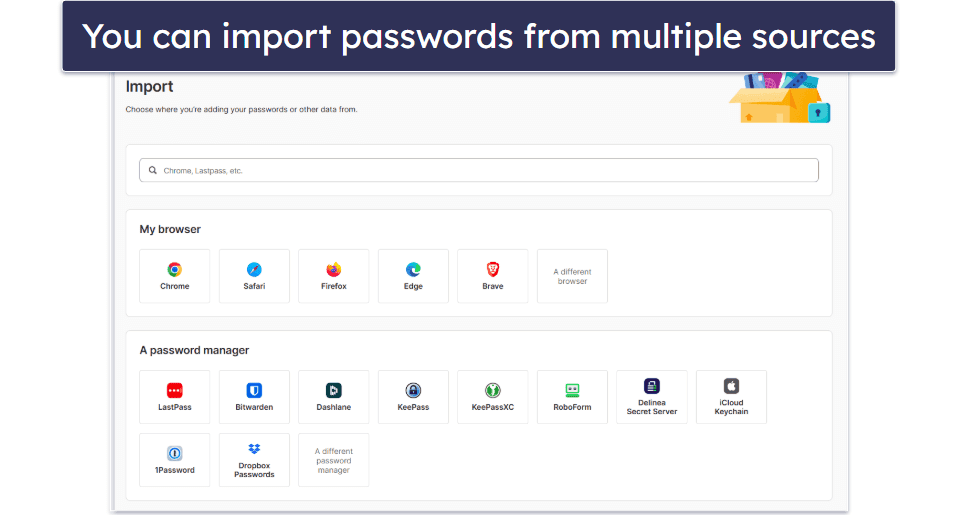
- Add your accounts to the vault. Log in to your favorite websites and apps as usual. Each time you enter a password, the manager will ask if you want to save it. You can also import logins from your browser or add accounts manually by typing them directly into the app.
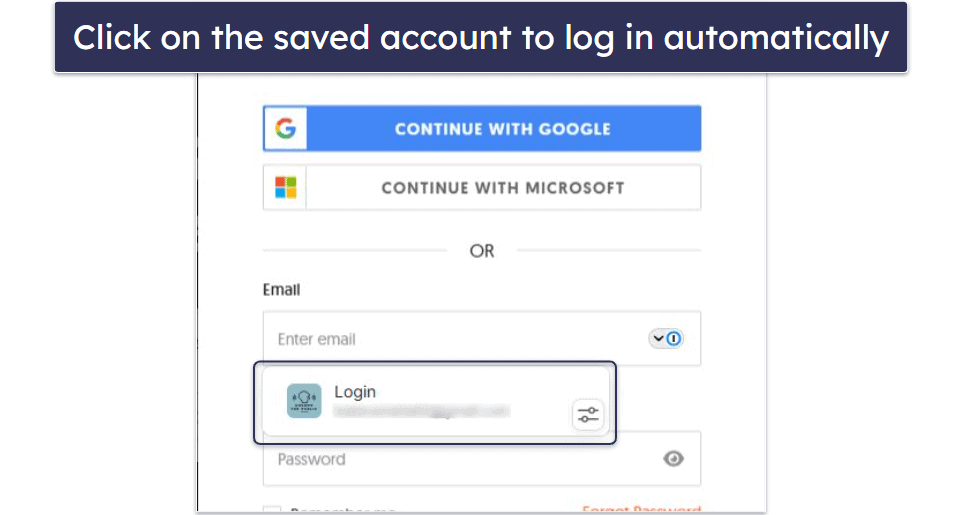
- Use auto-fill for quick logins. Next time you visit a saved website or open an app, you’ll see a small icon or pop-up from the password manager offering to fill in your details. Simply approve it, and you’ll be logged in instantly — no typing required.
- Keep adding and updating. Each time you create or change a password, let the manager save it. Over time, all of your accounts will be securely stored in one place.
Top Brands That Didn’t Make the Cut
- Bitwarden. Bitwarden is a decent open-source password manager with good security. However, my parents found it harder to navigate and sharing passwords proved more difficult than with the other password managers on my list.
- LogMeOnce. While LogMeOnce offers a strong security and useful set of features, it has a cluttered interface and is less intuitive than the password managers on my list — the overall design choices make it a poor fit for seniors.
- KeePass. KeePass is a very secure open-source password manager. However, I found it very difficult to use — its interface was rather unattractive and lacked an intuitive design. Also, it lacks the useful additional features and the helpful support options that you get with all the brands on my list.
Frequently Asked Questions
Is it safe to trust a password manager with all of my passwords?
Absolutely, it’s safe to use reputable password managers. They use advanced encryption methods, like 256-bit AES, which are also used by banks and governmental institutions to protect data. Furthermore, most password managers operate on a zero-knowledge protocol, meaning they can’t access or view your data themselves.
How can I help my elderly family members manage their passwords?
You can help your elderly family members by introducing them to a user-friendly password manager such as RoboForm. This tool stores all their passwords in one secure location, requiring them to remember only one master password. This simplifies their digital life significantly, making it easier to access services like online banking and entertainment platforms without the stress of remembering multiple passwords.
Do password managers track or sell my information?
No, trustworthy password managers don’t track or sell your information. They are designed to prioritize user security and privacy, implementing zero-knowledge protocols that encrypt data before it’s stored. This means only you can access your information, not even the password manager company can view your data, ensuring complete confidentiality and safety.